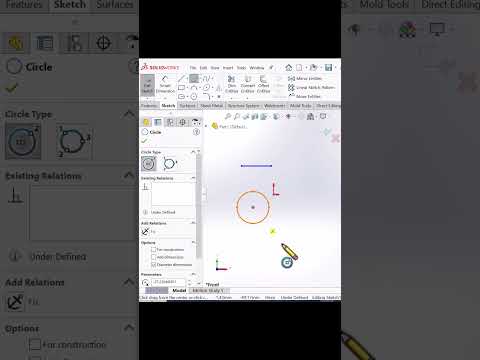
In the fast-paced world of modern engineering, efficiency is the divide between a good designer and a great one. Whether you are a student just starting out or a seasoned professional, mastering shortcut keys is essential for anyone looking to master the intricacies of CAD/CAM software. SOLIDWORKS is a powerhouse of design, but clicking through endless menus can significantly slow down your creative process.
Why Shortcuts Matter in Design
Time is the most valuable resource in any production environment. By moving away from a mouse-heavy interface and adopting keyboard shortcuts, you reduce repetitive strain and keep your focus where it belongs: on the model. Transitioning from a beginner to an advanced user requires a shift in mindset where your keyboard becomes an extension of your thought process, allowing for a seamless CAD/CAM experience.
The Power of the "S" Key and Mouse Gestures
The most important shortcut for any SOLIDWORKS user is undoubtedly the "S" key. Pressing this opens a customizable shortcut bar that follows your cursor, providing immediate access to the tools you use most frequently.
In addition to the "S" key, mastering Mouse Gestures allows you to execute commands with a simple flick of the wrist. By configuring these to your specific needs, you can handle sketching, Part modeling, and Assembly constraints without ever looking away from the graphics area. This level of fluid movement is an essential part of a high-performance CAD/CAM workflow.
Advanced Customization for Maximum Efficiency
Once you have mastered the basics, it is time to dive into customization. SOLIDWORKS allows users to map almost any command to a specific key combination. Advanced users often map "D" for confirmation corners or use the "F" key to instantly fit the model to the screen.
To truly optimize your productivity: * Identify Repetitive Tasks: If you find yourself searching for the same tool five times an hour, it needs a shortcut. * Use Breadcrumbs: Use the "D" key to bring selection breadcrumbs right to your mouse. * Standardize Your Setup: If you work across different machines, export your settings so your custom shortcuts follow you.
Conclusion
Mastering SOLIDWORKS shortcut keys is not just about working faster; it is about working smarter. By reducing the "travel time" of your mouse and utilizing the deep customization options available, you can focus on the innovation and quality of your designs. Start small, practice consistently, and watch as you significantly optimize your CAD/CAM efficiency.

No comments:
Post a Comment