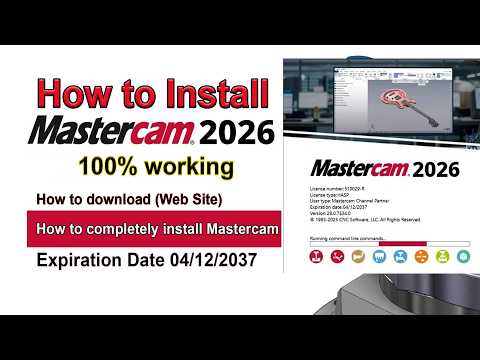
Are you ready to take your manufacturing and design skills to the next level? Mastercam 2026 has arrived, bringing a suite of upgraded features designed to streamline precision machining, toolpath generation, and 3D modeling. As one of the most widely used CAD/CAM software solutions in the world, getting Mastercam properly installed on your system is your first step toward mastering modern CNC programming.
In this beginner-friendly guide, we will walk you through the simple, step-by-step process of downloading and installing Mastercam 2026 on your PC.
Why Start with Mastercam 2026?
Mastercam continues to lead the manufacturing industry by offering powerful milling, turning, and multi-axis capabilities. Whether you are a student, hobbyist, or professional machinist, learning how to set up this robust CAD/CAM platform ensures you can tackle complex engineering challenges with ease and efficiency.
Step-by-Step Download and Installation Process
Step 1: Download the Official Installer
First, head over to the official Mastercam website or your designated reseller portal. Navigate to the downloads section, select Mastercam 2026, and choose the correct installation package. Ensure you have a stable internet connection during the download, as the installer file size is quite large.
Step 2: Check System Requirements
Before launching setup, verify that your hardware meets the system requirements to run the software smoothly: * Operating System: Windows 10 or Windows 11 (64-bit) * Processor: Intel® or AMD 64-bit processor (Intel i7/i9 recommended) * RAM: Minimum 8 GB (32 GB recommended for heavy toolpath calculation) * Graphics Card: OpenGL 3.2 support with at least 4 GB VRAM
Step 3: Run the Installation Wizard
Once the download is complete, locate the setup file in your downloads folder. Right-click the installer and select "Run as Administrator."
Follow the on-screen prompts: 1. Select your preferred language. 2. Accept the License Agreement. 3. Choose your installation path and measurement units (Metric or Imperial). 4. Click Install and wait for the process to finish.
Step 4: Configure Licensing and Launch
After installation, configure your software license (such as a HASP key, NetHASP, or digital license). Once authorized, launch Mastercam 2026 and customize your interface settings to fit your project workflow.
Final Thoughts
Setting up your software correctly is essential for a seamless design and manufacturing workflow. By following these steps, you are ready to leverage industry-standard CAD/CAM tools directly from your desktop. Download Mastercam 2026 today and start transforming your digital designs into physical reality!

No comments:
Post a Comment