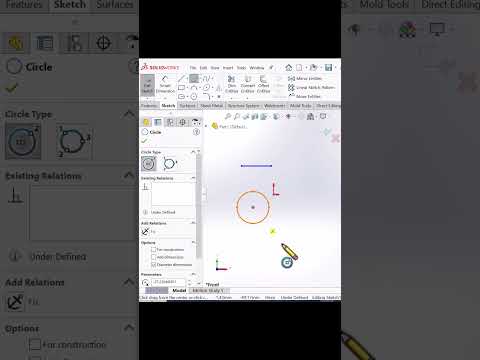
Whether you are a novice designer or an experienced engineer, speed and precision are critical when bringing 3D concepts to life. SOLIDWORKS remains a dominant software solution in the global CAD/CAM landscape. However, constantly navigating through complex menus can drastically slow down your modeling speed. Mastering essential SOLIDWORKS shortcut keys is the single most effective way to streamline your design process and eliminate repetitive tasks.
Must-Know Beginner Shortcuts for Daily Workflows
When starting out, learning a few core default hotkeys can immediately save you time and reduce mouse travel:
- The 'S' Key (Shortcut Bar): Pressing 'S' instantly opens a context-sensitive, customizable toolbar right next to your cursor, offering quick access to your most used sketch or feature tools.
- The 'F' Key: Quickly fits your entire part or assembly model onto the screen.
- Tab / Shift + Tab: Effortlessly hide or unhide components in an assembly simply by hovering your cursor over the part and pressing the key.
- Ctrl + 1 through 8: Rapidly switch between standard view orientations, such as Front, Top, Right, or Isometric views.
Advanced Customization & Mouse Gestures
Once you are comfortable with basic hotkeys, you can tailor your workspace to align with your personal CAD/CAM modeling habits:
- Mouse Gestures: Enable 4, 8, or 12-command mouse gestures. By right-clicking and dragging in a specific direction, you can instantly activate commands like Smart Dimension or Circle Sketch without touching the keyboard.
- Custom Keyboard Mapping: Access Tools > Customize > Keyboard to assign custom hotkeys to specialized tools you frequently use during complex surfacing or assembly design.
Why Shortcut Mastery Matters for Engineering Design
In high-stakes manufacturing and CAD/CAM environments, saving a few seconds on every feature quickly translates into hours saved on entire design cycles. Minimizing menu hunting allows you to maintain focus on design logic, reduces ergonomic strain, and helps you deliver high-quality models faster.
By building these SOLIDWORKS shortcut keys into your daily routine, you will seamlessly elevate your modeling capability from beginner level to advanced mastery.

No comments:
Post a Comment